

Containers
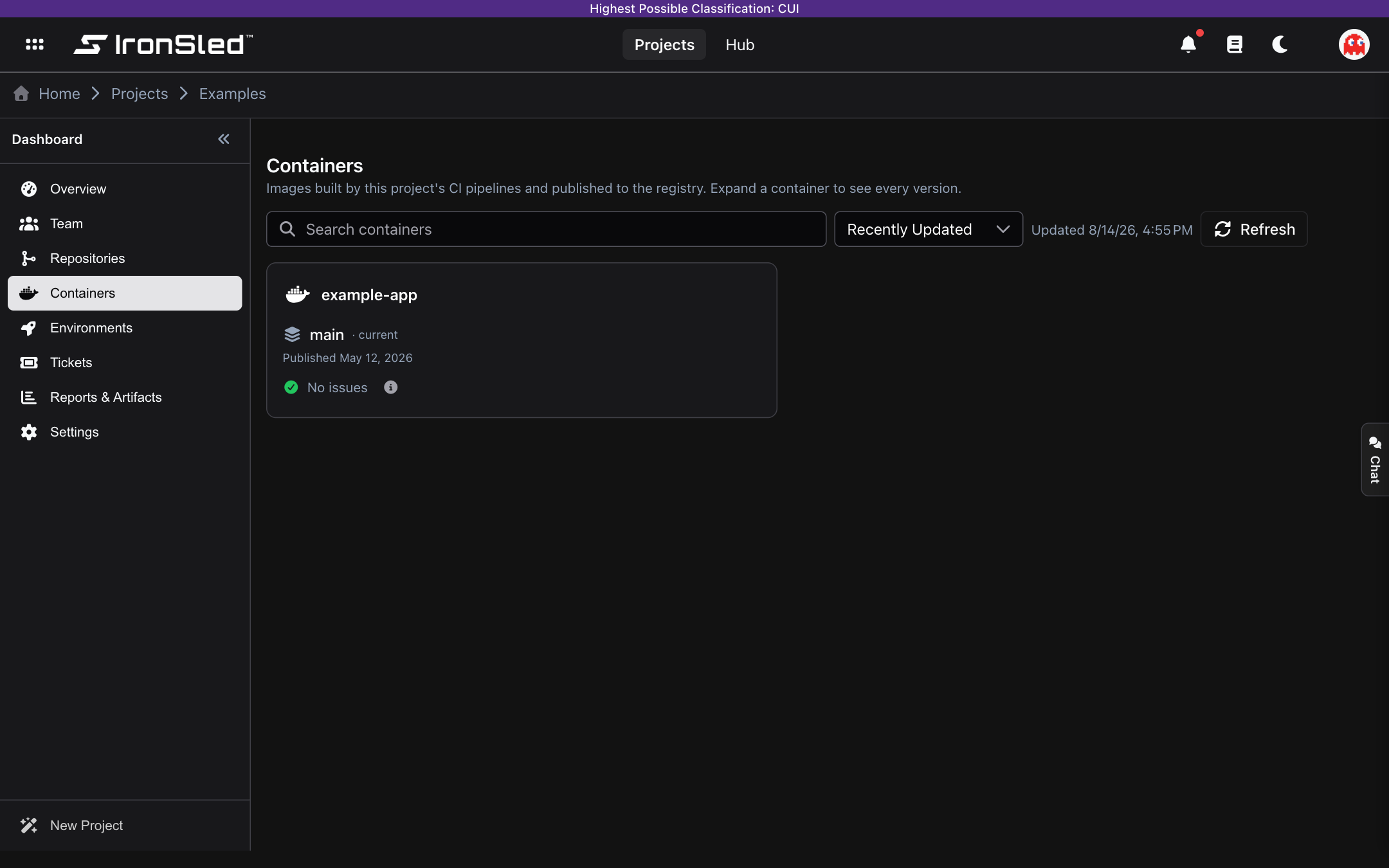
A project's container images — auto-discovered from CI pipelines (code projects) or backed by container-upload repositories (upload projects), with version history and Trivy scan results.
The Containers section shows the container images that belong to a project. Containers are no longer associated by hand — they follow automatically from the project's repositories, on a one repository = one container model. How they appear depends on the project type.
The old manual "Associate Container" flow — entering a Nexus URL and image path, "Lookup by Group", and per-container cache refresh — has been removed from projects. (A manual flow still exists for the platform-wide image library; see Hub.)
How Containers Work
- Code projects — Containers are the images your CI pipelines build and publish to the registry. They appear automatically after a successful build, and the list is read-only.
- Upload projects — Each container-upload repository (created under Repositories) shows up here as a container. You bring images in by uploading them.
In both cases there is nothing to "associate" — adding a container means adding (or building from) a repository.
Code Projects: Images from CI Pipelines
For a code project, the section lists "Images built by this project's CI pipelines and published to the registry." Images are discovered automatically from the project's repositories' recent pipeline runs — there is no manual add, edit, or remove.
Available controls:
- Search containers — Filter by image name.
- Sort — Recently Updated or A–Z.
- Updated (timestamp) — When the snapshot was last refreshed.
- Refresh — Re-pull the latest images from the pipeline snapshot.
If nothing has been built yet, the section shows: "No images in the registry yet — they appear here after a successful CI build."
Upload Projects: Container-Upload Repositories
For an upload project, "Each container is backed by a container-upload repository (created under Repositories)." When you create a container-upload repository under Repositories, IronSled automatically creates a matching container here — no separate association step.
If there are none yet, the section shows: "No containers yet. Add a container-upload repository under Repositories — each one shows up here as a container."
Uploading an Image
Each container card has an Upload button:
- Click Upload on the container card.
- In the Upload image drawer (titled for the container), drag and drop (or browse for) your image as a Docker
.tar,.tar.gz, or.tgz— the file produced bydocker save. - Enter a Tag (e.g.,
1.0.0,2.3.1,latest; letters, numbers,_,.,-only, max 128 characters) and an optional Note. - Click Upload.
The image is then scanned and published automatically — you do not trigger a pipeline yourself. Its status advances as the pipeline runs (see below).
Recovering Missing Versions
If versions are missing — for example, images published before they were tracked, or a pipeline that did not report back — a Rescan pipelines action (platform managers) backfills image versions from the project's GitLab pipeline history.
Versions and Scan Status
Expand a container to see its version history, newest first. The latest version is marked · current. Each version shows a status dot and label reflecting where the image is in its lifecycle:
| Status | Meaning |
|---|---|
| in registry | Published to the registry and available to pull. |
| uploaded | Uploaded, waiting to be scanned. |
| scanning | A pipeline is building, scanning, or publishing the image. The live phase is shown, with a View pipeline link to GitLab. |
| staged | Scanned and staged, pending publish. |
| scan failed / upload failed | The scan or upload did not complete. |
Each version also shows its Published or Uploaded date and its scan results — either No issues or a severity breakdown (Critical / High / Medium / Low). Opening the scan report (Pipeline image scan) shows the full Trivy report: each CVE with its affected package, installed and fixed versions, and severity.
How Metadata Stays Current
Container data is driven by the pipeline lifecycle, not a manual cache refresh:
- Uploaded images advance automatically through scanning → publish as their pipeline runs; the live pipeline phase is reflected in the status.
- A scheduled reconciliation job advances in-flight uploads to their final state and caches their scan summaries.
- For code projects, the pipeline-built image snapshot is cached and recomputed periodically; use Refresh to force an update.
- Rescan pipelines (platform managers) backfills any missing versions from GitLab pipeline history.
The previous per-container "Refresh Cache" button has been replaced by this automatic, pipeline-driven model.
Permissions
| Action | Who Can Do It |
|---|---|
| View containers | All project members |
| Upload an image (upload projects) | Project members with write access to the container-upload repository |
| Refresh the code-project image list | Any project member |
| Rescan pipelines / recover history | Platform managers |
Containers are created and removed through their backing repositories under Repositories, so there is no separate add or delete action in this section.
Repositories
A project's GitLab repositories — automatic sync, pipelines, Trivy security scanning, SBOMs, release tags, branches, and merge requests.
Environments
Linking Rancher clusters and namespaces to a project — viewing deployments, pod health, ingress routing, and runtime security vulnerabilities from the Trivy Operator.