

Repositories
A project's GitLab repositories — automatic sync, pipelines, Trivy security scanning, SBOMs, release tags, branches, and merge requests.
The Repositories section connects a project to its GitLab repositories and provides visibility into code activity, CI/CD pipelines, security scanning, and software composition — without navigating between tools. Each repository's branches, pipelines, merge requests, and scan results are pulled from GitLab and presented in one place.
Repositories also define the project's Containers: on a one repository = one container model, a project's container images follow from its repositories.
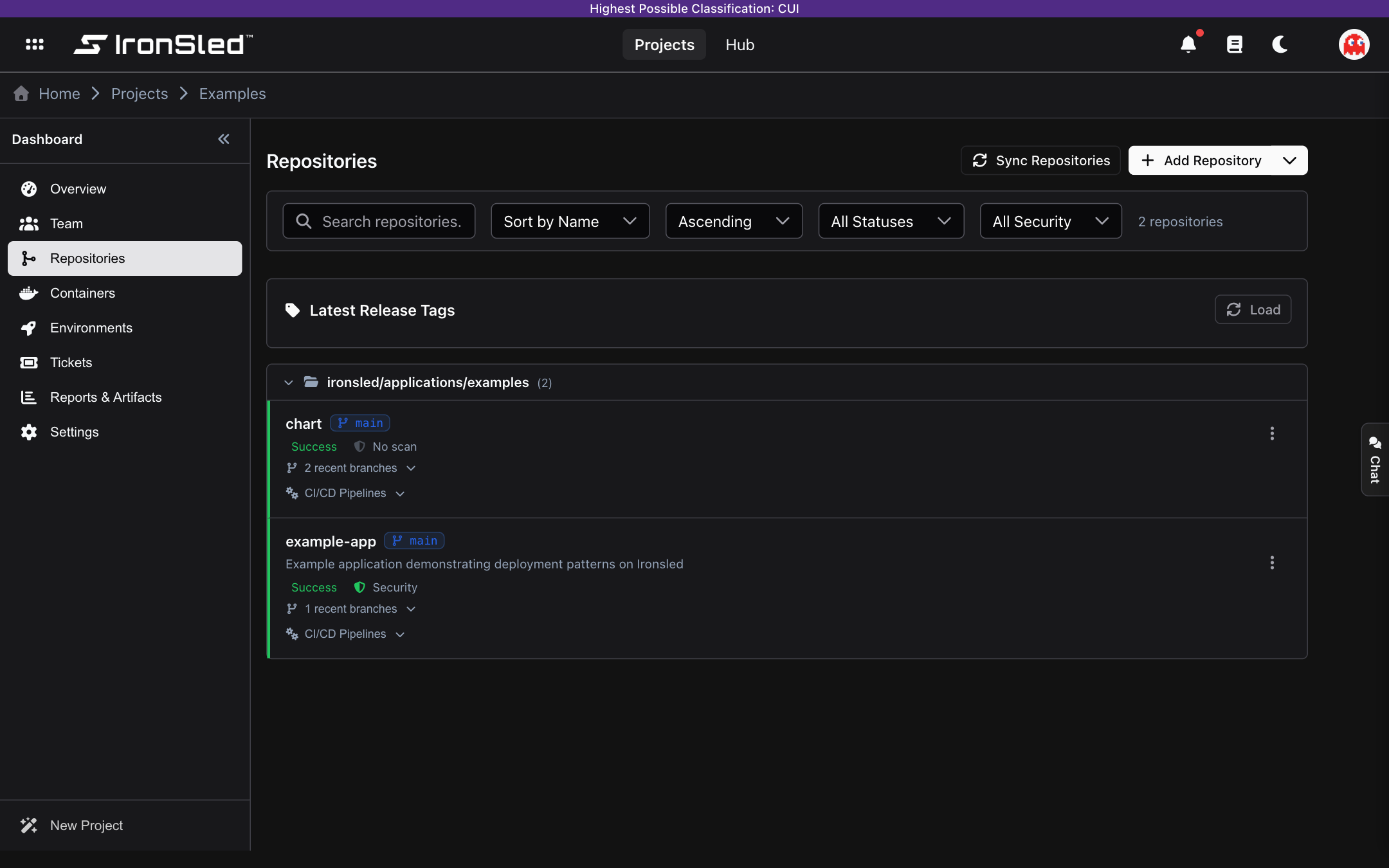
How Repositories Get Here
Most repositories arrive automatically. When a project is activated, the repositories provisioned during onboarding are synced from the project's GitLab group(s) and registered here — along with their containers — with no manual step.
You can also manage the list directly:
- Add Repository — Create a new repository from a template. The template matches the project type: code repositories for code projects, container-upload repositories for upload projects (each container-upload repo automatically appears as a container).
- Associate Existing Repository — Link a repository that already exists in GitLab (from the Add Repository split-button menu).
- Sync Repositories — Reconcile the list with live GitLab: add newly created repositories, mark deleted ones, and refresh metadata. Archived GitLab repositories are excluded.
Hiding and Removing
- Hide a repository to keep it in the project but out of the default list (toggle with Show N hidden).
- Remove a repository to disassociate it from the project (toggle with Show N removed). Removing does not delete anything in GitLab, and a removed repository will not be re-added by a future sync. You can Restore it later.
Repository Overview
Each repository is displayed as a row showing key information at a glance:
- Repository name — Links to the repository in GitLab.
- Default branch — The primary branch (e.g.,
main), shown as a chip. - Pipeline status — The state of the latest pipeline (success, failed, running, etc.).
- Security scan indicator — A shield icon showing whether the latest pipeline ran a Trivy scan and its result (clean, vulnerabilities found, or no scan).
- Open merge requests — A count of open MRs, clickable to view them in GitLab.
- Description and last activity from GitLab.
Repositories are grouped into collapsible sections by their GitLab subgroup (folder path).
Repository Status
IronSled tracks the accessibility of each repository:
| Status | Meaning |
|---|---|
| Active | Repository is accessible and data is current. |
| Deleted | The repository has been deleted in GitLab. |
| Inaccessible | Access has been restricted; the system token cannot read it. |
| Error | An unexpected error occurred when fetching repository data. |
Non-active repositories display a status badge and an error message, and remain listed so the team is aware. Hidden and removed repositories carry their own badges.
Filtering and Sorting
- Search — Filter repositories by name (case-insensitive).
- Pipeline status filter — Success, Failed, Running, or Pending.
- Security filter — Scan Passed, Scan Failed, or No Scan.
- Sort by — Name, Last Activity, or Created Date, ascending or descending.
A repository count badge shows how many match the current filters.
Latest Release Tags
A Latest Release Tags panel summarizes the most recent release across the project's repositories. Click Load to populate it (or Refresh to update). For each repository it shows:
- The latest release tag and how long ago it was cut.
- Pipeline and security status for that release.
- A count of unreleased commits since the latest tag.
For monorepos that build multiple containers, release tags are broken down per component, so each published component shows its own latest tag and unreleased-commit count.
Branches
Each repository has an expandable Branches section showing the most recently active branches, sorted by last commit date. For each branch:
- Branch name — With a lock icon if protected.
- Last commit date.
- Compare — Opens a comparison against the default branch in GitLab.
A branch/tag selector in the CI/CD area lets you switch refs; the default branch is starred and tags are marked with a tag icon. Selecting a different ref reloads its pipeline history.
CI/CD Pipelines
Expanding CI/CD Pipelines shows the pipeline history for the selected branch or tag.
Latest Pipeline
- Pipeline status — success, failed, running, pending, canceled, created, manual, scheduled.
- Security scan status — Whether a Trivy scan ran and its result.
- View pipeline / Security / SBOM — Links to the pipeline, the scan report, and the SBOM in GitLab.
Recent Runs
The five most recent runs are listed compactly with the pipeline ID, status icon, security indicator, timestamp, and View/Security buttons.
Pipeline Statuses
| Status | Description |
|---|---|
| Success | All jobs passed. |
| Failed | One or more jobs failed. |
| Running | The pipeline is executing. |
| Pending | Queued, waiting for a runner. |
| Canceled | Manually canceled. |
| Created | Created but not started. |
| Manual | Requires manual intervention. |
| Scheduled | Scheduled to run later. |
| Skipped | Skipped by rules or conditions. |
Security Scanning
IronSled integrates with Trivy, which runs as part of the CI/CD pipeline. When a pipeline includes a Trivy scan job (scan_container_trivy), IronSled extracts and displays the results.
Vulnerability Summary
| Severity | Description |
|---|---|
| Critical | Address immediately — typically remotely exploitable with known exploits. |
| High | Serious vulnerabilities that could lead to significant compromise. |
| Medium | May require specific conditions to exploit. |
| Low | Minor issues with limited impact. |
| Unknown | No severity assigned. |
Viewing the Full Scan Report
- Click the Security button on a pipeline.
- A dialog shows the full Trivy container scanning report.
- Each vulnerability lists its CVE identifier, affected package, installed version, fixed version (if available), and severity.
Reports are pulled from the pipeline artifact (gl-container-scanning-report.json); if the artifacts have expired, the report is unavailable.
Project-Level Security Aggregation
At the project dashboard level, IronSled aggregates vulnerability data across all active repositories. The Pipeline Vulnerabilities KPI shows the total across all repos with a severity breakdown — a single view of the project's security posture.
Software Bill of Materials (SBOM)
When a Trivy scan runs, it also generates a Software Bill of Materials in CycloneDX format documenting every component, dependency, and library in the image.
- Click the SBOM button on a pipeline that includes a Trivy scan.
- A dialog shows the component inventory — packages, versions, licenses, and dependency relationships.
The SBOM is sourced from the pipeline artifact (gl-sbom-scanning-report.json) and is only available while the artifacts have not expired.
Merge Requests
The open merge request count is shown on each repository as a badge; clicking it opens the MR list in GitLab. Only open MRs are counted.
External Navigation
Several elements link directly to GitLab: the repository name, pipeline IDs / View pipeline, the MR count badge, Compare, Commits, and Contributors. All external links open in a new tab.
How Data Stays Current
Repositories are kept current in three ways:
- Automatic sync on activation — repositories provisioned during onboarding register automatically when the project becomes active.
- Manual sync — the Sync Repositories button reconciles the list with live GitLab on demand (adds new, marks deleted, updates metadata, excludes archived).
- Per-load fetch — branches, pipelines, and merge request counts are fetched from GitLab when the section loads or when you switch branches, with independent loading states per repository.
Manage Your Team
Managing project team members — adding and removing users, assigning roles, setting a Point of Contact, and how roles map to Okta groups and GitLab permissions.
Containers
A project's container images — auto-discovered from CI pipelines (code projects) or backed by container-upload repositories (upload projects), with version history and Trivy scan results.