

Request Infrastructure
Submitting tickets for new infrastructure resources — AI-assisted parsing, ticket lifecycle, platform team management, and activity tracking.
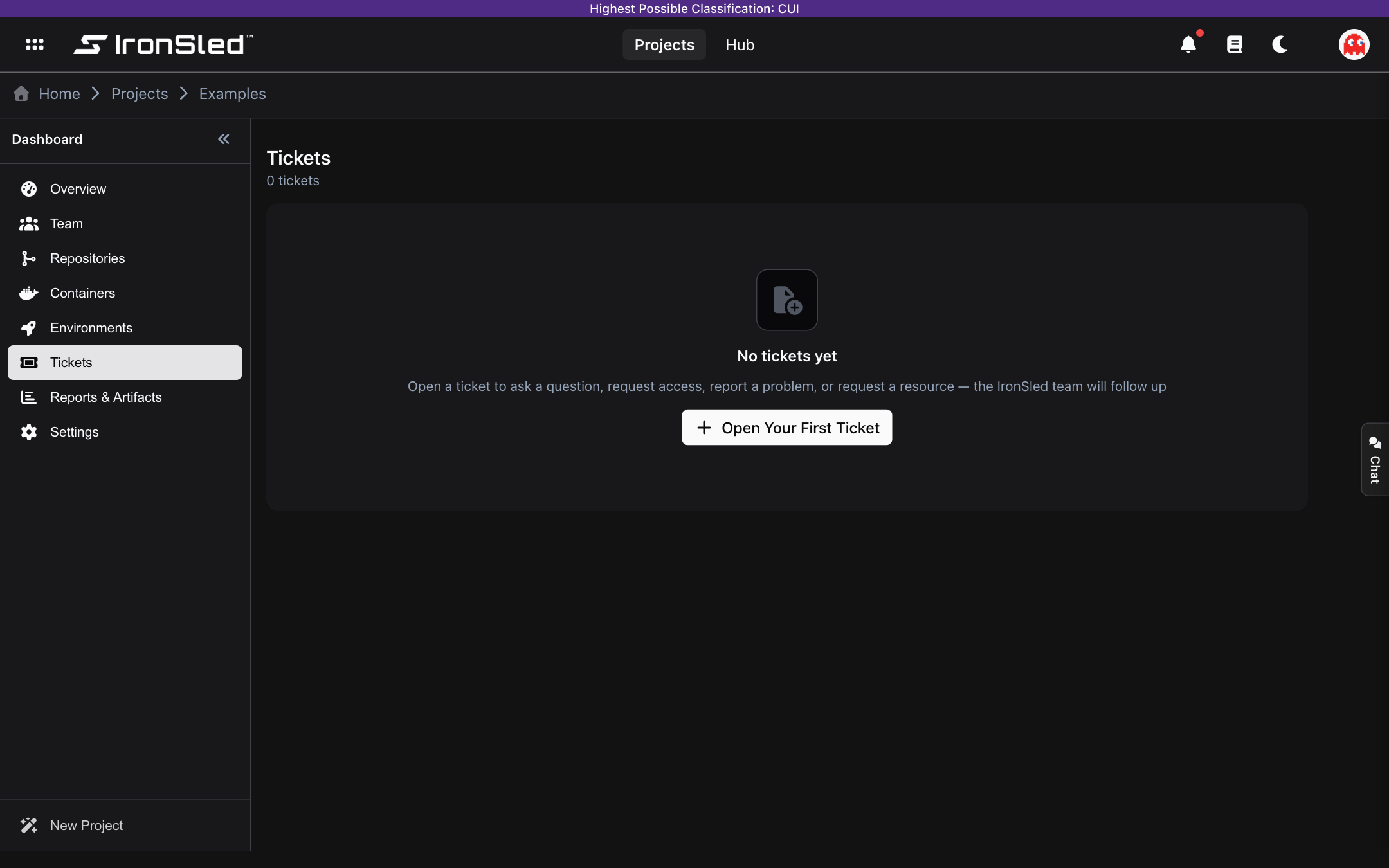
The Tickets section gives project teams a way to ask the platform team for new infrastructure without leaving IronSled. Whether the team needs a new database, a deployment environment, storage, or a networking change, they describe what they need and submit a ticket. An AI parser extracts the details, and the platform team manages the ticket through to completion.
What Can Be Requested
Tickets fall into four resource categories:
| Type | Examples |
|---|---|
| Environment | New deployment environments — development, staging, QA, UAT, production, demo. |
| Database | Database instances — PostgreSQL, MySQL, MongoDB, RDS, DocumentDB. |
| Storage | Object storage (S3 buckets), persistent volumes, file storage, blob storage. |
| Networking | DNS entries, load balancers, VPN configurations, firewall rule changes. |
Creating a Ticket
To submit a new ticket:
- Navigate to the project's Tickets section.
- Click New Ticket.
- Step 1 — Describe: Write a free-form description of what is needed (minimum 20 characters). Example prompts are provided for guidance:
- "I need a new staging environment for testing the next release"
- "We need a PostgreSQL database for the new reporting feature"
- "Our team needs an S3 bucket for storing user uploads"
- "We need load balancer configuration for high availability"
- Click Analyze Ticket. IronSled's AI parser reads the description and extracts structured details — the resource type, a suggested title, specifications, urgency, and a confidence score.
- Step 2 — Review & Edit: Review what the AI extracted and adjust as needed:
- Title — A short summary of the ticket (auto-generated, editable).
- Resource Type — The category (environment, database, storage, networking).
- Priority — Low, medium, or high urgency.
- Business Justification — Why the resource is needed (optional, editable).
- Specifications — Key-value pairs the AI extracted from the description (e.g., version, storage size, replica count).
- Follow-up Questions — If the AI detected gaps in the description, it suggests clarifying questions.
- Click Submit Ticket.
The ticket is created with a status of Pending and the platform team is notified.
AI Confidence Score
The AI parser returns a confidence score indicating how well it understood the ticket:
| Confidence | Indicator | Meaning |
|---|---|---|
| 80% or higher | Green | The AI is confident in its interpretation. Review the details and submit. |
| 50% – 79% | Orange | The AI made reasonable guesses but some details may need correction. |
| Below 50% | Red | The description was vague. Edit the extracted fields or add more detail. |
If the AI cannot parse the description, it falls back to safe defaults and flags the ticket for manual review.
Ticket Lifecycle
Each ticket moves through a defined set of statuses:
Submitted (Pending)  →  Accepted  →  Completed
→ Rejected| Status | Meaning |
|---|---|
| Pending | The ticket has been submitted and is waiting for the platform team to review it. |
| Accepted | The platform team has accepted the ticket and is working on fulfilling it. |
| Completed | The requested resource has been provisioned. This is a terminal state. |
| Rejected | The ticket was denied. A reason is provided by the platform team. This is a terminal state. |
Once a ticket reaches Completed or Rejected, no further status changes or notes can be added.
Viewing Tickets
The tickets list shows all tickets for the project, sorted by creation date (newest first). Each ticket card displays:
- Type icon — Visual indicator of the resource category.
- Title — The ticket summary.
- Description — The first two lines of the original description.
- Urgency badge — Shown for high-priority tickets.
- Status tag — Color-coded: Pending (orange), Accepted (blue), Completed (green), Rejected (red).
- Latest activity — The most recent status update or note, with timestamp.
Filtering
Use the status filter to narrow the list to a specific status — All, Pending, Accepted, Completed, or Rejected. A badge next to the filter shows the count of non-terminal (pending and accepted) tickets.
Ticket Details
Clicking a ticket opens a read-only detail view showing:
- Status badge with high-priority indicator if applicable.
- Ticket details — Title, resource type, creation date and time.
- Full description — The original text submitted by the requester.
- Specifications — The key-value pairs extracted by the AI parser (e.g., database version, storage size).
- Business justification — Why the resource is needed, if provided.
- Activity log — A chronological list of every status change and note, showing who made it, when, and any accompanying notes.
Platform Team Management
The platform team manages tickets from all projects through the Platform Console.
Platform Tickets View
The console shows:
- Summary cards — Total counts of Pending, Accepted, and Completed tickets across all projects.
- Project grouping — Tickets are organized by project in an accordion layout, showing the project logo, name, and badge counts for pending and in-progress tickets.
- Status filter — Filter across all projects by status.
Managing a Ticket
When a platform team member opens a ticket, they can:
- Add a note — Post a comment to the activity log without changing the ticket's status. Useful for asking questions, providing updates, or documenting progress.
- Accept — Move the ticket from Pending to Accepted, optionally with a note.
- Reject — Move the ticket from Pending to Rejected. A reason is required.
- Mark Complete — Move the ticket from Accepted to Completed, optionally with a note.
Every action is recorded in the activity log with the user's name, a timestamp, the new status, and any notes.
Activity Log
Each ticket maintains a full activity history. Every status change and every note is recorded as an entry with:
- Who — The name of the person who made the change.
- When — The timestamp.
- Status — The status at the time of the entry.
- Notes — Any comments or context provided.
This creates a complete audit trail of the ticket from submission through resolution.
Dashboard Integration
The Tickets section shows a badge count of active (non-terminal) tickets in the project navigation, giving the team quick visibility into how many tickets are still in progress.
Permissions
| Action | Who Can Do It |
|---|---|
| View project tickets | All project members |
| Create a ticket | All project members |
| View ticket details | All project members |
| Accept / reject / complete tickets | Platform team (via Platform Console) |
| Add notes to tickets | Platform team (via Platform Console) |
Environments
Linking Rancher clusters and namespaces to a project — viewing deployments, pod health, ingress routing, and runtime security vulnerabilities from the Trivy Operator.
Reports & Artifacts
The Reports & Artifacts section of an IronSled project — Velocity, Runtime Vulnerabilities, Pipeline Vulnerabilities, Container SBOMs, Authorization Boundary, and Component Inventory reports, including PDF/CSV/JSON exports and which reports appear for code vs upload projects.