

Settings
Managing project identity — name, cost center, description, light and dark mode logos, and the danger zone for decommissioning and permanently deleting a project.
The Settings section is where project owners manage the project's identity and handle end-of-life actions. It covers three areas: general information (name, cost center, description), project logos for light and dark modes, and the danger zone for decommissioning or permanently deleting a project.
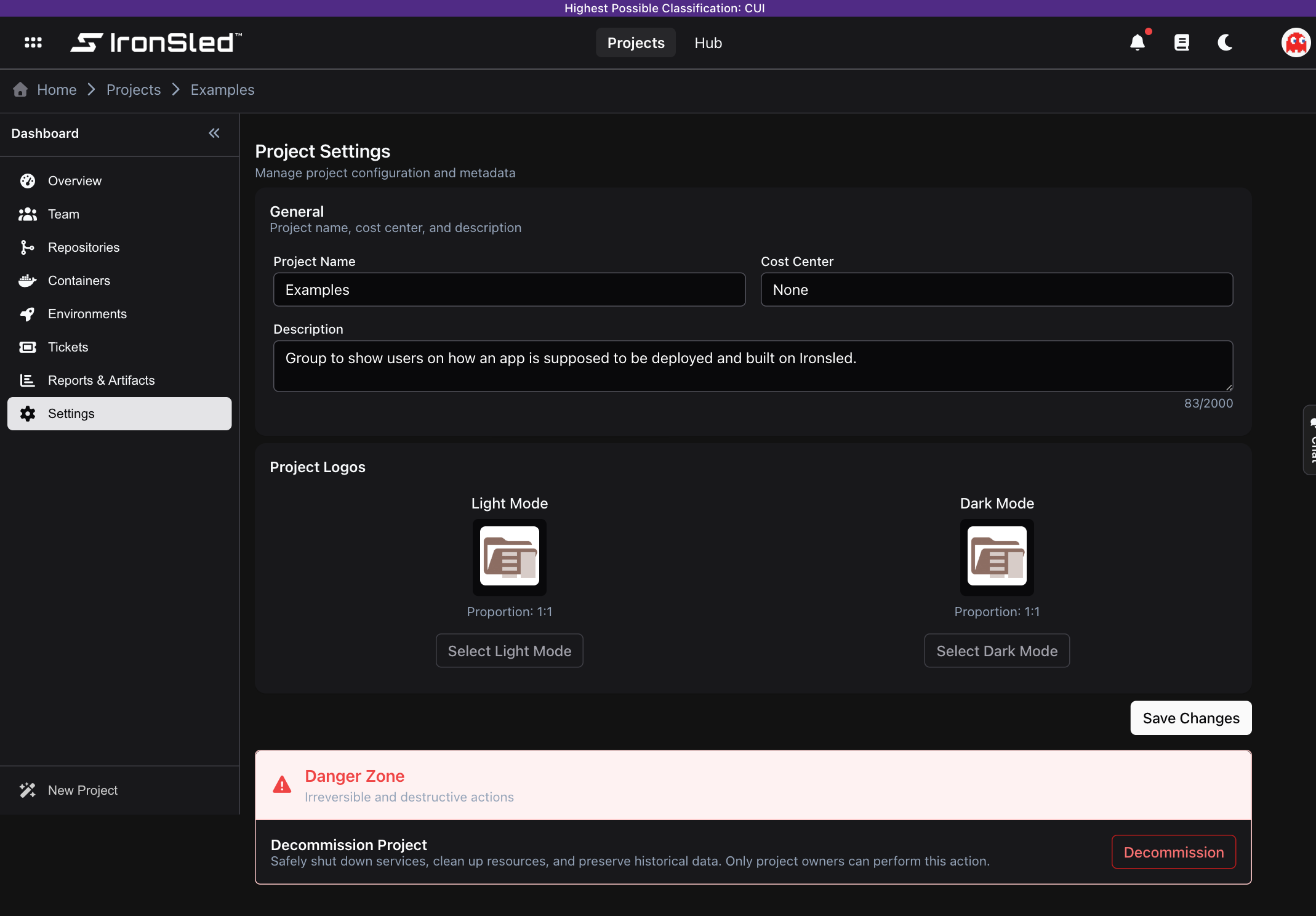
General Settings
The general settings panel lets owners update the project's core metadata.
| Field | Description | Validation |
|---|---|---|
| Project Name | The display name shown throughout IronSled. | Required. 3–50 characters. |
| Cost Center | The billing or organizational cost center associated with the project. | Required. |
| Description | A short summary of what the project is for. | Optional. Up to 500 characters. |
Changes are saved by clicking Update Project. The project name and cost center are required fields — the form cannot be submitted without them. Updating the description is optional but recommended, as it appears in project listings and search results.
Project Logos
Each project can have two logos — one for light mode and one for dark mode. The correct logo is displayed automatically based on the user's current theme. If only one logo is uploaded, it is used in both modes.
Uploading a Logo
- In the Settings section, find the Project Logos area.
- Click the upload zone for the desired mode (light or dark).
- Select an image file. Supported formats are PNG and JPEG.
- The image is cropped to a 1:1 aspect ratio and resized to a maximum of 96 pixels on each side.
- The logo is saved immediately upon upload.
Removing a Logo
Click the remove button on an existing logo to delete it. If both logos are removed, the project displays a default placeholder icon in listings and navigation.
How Logos Are Used
Project logos appear in several places throughout IronSled:
- Project navigation — The sidebar and breadcrumb area.
- Project listings — Cards and tables that list projects.
- Platform Console — Where the platform team views requests and environments across projects.
- Container cards — When viewing containers associated with the project.
The system stores light and dark variants separately, so teams can provide versions optimized for each background color.
Danger Zone
The danger zone contains irreversible actions that affect the entire project. It is only visible to project owners and is visually separated from the rest of the settings page with a warning border.
Decommissioning a Project
Decommissioning marks a project as inactive. It does not delete the project, but it disables active integrations and signals to the team and platform that the project is winding down.
What happens when a project is decommissioned:
- All associated repositories are unlinked from the project.
- All associated environments are removed from the project.
- The project's status is changed to Decommissioned.
- Notifications are sent to all project owners and platform managers informing them of the decommission.
- An activity log entry is recorded with the decommission action.
To decommission a project:
- Scroll to the Danger Zone section.
- Click Decommission Project.
- A confirmation dialog appears with a warning explaining the consequences.
- Type the exact project name in the confirmation field. The text must match exactly (case-sensitive).
- Click Confirm Decommission.
The confirmation text requirement prevents accidental decommissions — the button remains disabled until the project name is typed correctly.
Once decommissioned, the project remains visible in IronSled but its integrations are inactive. This state is a prerequisite for permanent deletion.
Deleting a Project
Permanent deletion removes the project and all of its associated data from IronSled. This action is only available after a project has been decommissioned.
What is permanently deleted:
- The project record and all metadata.
- All team memberships and role assignments.
- All container associations.
- All tickets and their activity logs.
- All activity history for the project.
- All project logos.
The deletion is performed as a database transaction — either everything is removed or nothing is.
To delete a project:
- The project must already be in a Decommissioned state.
- In the Danger Zone, click Delete Project.
- A confirmation dialog appears with a final warning.
- Type the exact project name to confirm (case-sensitive).
- Click Confirm Delete.
After deletion, the user is redirected to the projects list. The project cannot be recovered.
Why Two Steps?
The decommission-then-delete workflow is intentional. Decommissioning is a reversible soft shutdown — it disables integrations but preserves the project data. This gives teams time to verify that nothing is lost before taking the irreversible step of deletion. The platform team is also notified during decommission, giving them an opportunity to intervene if the project is being retired prematurely.
Permissions
| Action | Who Can Do It |
|---|---|
| View settings | Project owners |
| Update general settings | Project owners |
| Upload or remove logos | Project owners |
| Decommission a project | Project owners |
| Delete a project | Project owners (after decommission) |
Reports & Artifacts
The Reports & Artifacts section of an IronSled project — Velocity, Runtime Vulnerabilities, Pipeline Vulnerabilities, Container SBOMs, Authorization Boundary, and Component Inventory reports, including PDF/CSV/JSON exports and which reports appear for code vs upload projects.
Managing Secrets
How to manage secrets for your application on IronSled. The Portal has no secrets-management screen — secrets are handled in GitLab CI/CD variables for pipelines and with Kubernetes Secrets and the External Secrets Operator for runtime. Includes where each type of secret belongs and links to the how-tos.